Single sign-on (SSO)
Oblique supports logging in with several identity providers:
- Okta
You can enforce any specific authentication requirements, like MFA, in your identity provider. You cannot sign into Oblique with basic authentication (username and password).
Configure Google as your SSO provider
Section titled “Configure Google as your SSO provider”These instructions are for using Google as an identity provider to authenticate to Oblique. To add Google as an integration to sync users and resources to Oblique, see Add a Google Workspace directory to Oblique.
To authenticate to Oblique with Google, log in with your Google account. You don’t need to configure anything else.
Configure Okta as your SSO provider
Section titled “Configure Okta as your SSO provider”These instructions are for using Okta as an identity provider to authenticate to Oblique. To add Okta as an integration to sync users and resources to Oblique, see Add an Okta tenant to Oblique.
To authenticate to Oblique with Okta, you must first set up Oblique as a custom OpenID Connect app integration in Okta. Read more about creating a custom OpenID Connect app integration in Okta’s documentation.
From your Okta Admin Console:
-
Navigate to Applications > Application.
-
Select Create App Integration.
-
Under Sign-in method, select OIDC - OpenID Connect.
-
Under Application type, select Web Application.
-
Select Next.
-
In General Settings, under App integration name, enter “Oblique”.
-
Under Sign-in redirect URIs, enter the redirect URI for the Oblique region you are using.
https://us.oblique.security/api/oauth2-redirecthttps://eu.oblique.security/api/oauth2-redirect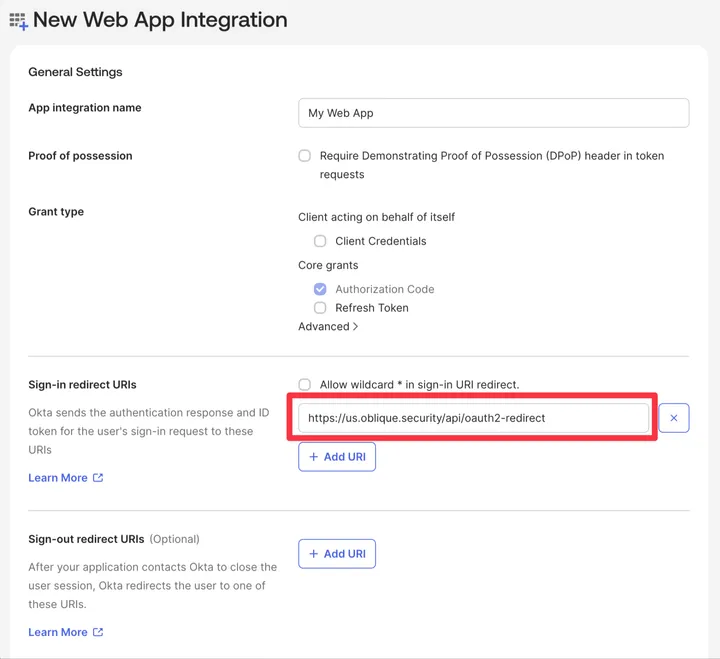
-
In Assignments, under Controlled access, select Allow everyone in your organization to access, or the appropriate option for your organization.
-
Select Save.
-
On the General tab, copy the Client ID. Under CLIENT SECRETS, copy the client secret.
-
Send your organization’s Okta tenant url, client ID, and client secret to support@oblique.security.
After you submit this information, Oblique will activate your tenant. This is typically done within one business day.
Authorize additional domains to authenticate to your tenant
Section titled “Authorize additional domains to authenticate to your tenant”Oblique supports having users from multiple email domains sign in to the same tenant through the same identity provider configuration. To change the list of email domains or email addresses allowed to authenticate to Oblique, contact support.
Edit your authentication settings
Section titled “Edit your authentication settings”After initial configuration, to change your tenant’s identity provider or authentication settings, contact support.
View your authentication settings
Section titled “View your authentication settings”To see your tenant’s authentication settings, navigate to Manage:
- Select General.
- Under Authentication, you can see your tenant’s identity provider and allowed email domains or addresses.