Slack
This article includes information on adding a Slack integration and syncing Slack accounts. To use Slack for notifications, connect the integration then see Slack notifications.
When you connect a Slack workspace to Oblique, Oblique will automatically sync the workspace’s members. As you make changes in Slack, these are automatically synced to Oblique.
You cannot currently add multiple Slack workspaces to the same Oblique tenant.
Supported options
Section titled “Supported options”Oblique integrates with Slack:
- As a source for accounts
From your Slack workspace, Oblique syncs:
- Members of the Slack workspace, as Oblique accounts
Slack accounts are automatically matched to Oblique users based on email.
Required permissions
Section titled “Required permissions”The Oblique Slack app requires the following permissions to operate in your Slack workspace:
- View basic information about public channels in your workspace
- View basic information about private channels that @Oblique has been added to
- View people in your workspace
- View email addresses of people in your workspace
- Send messages as @Oblique
- Post messages to specific channels in Slack
Add Slack integration
Section titled “Add Slack integration”Navigate to the Integrations page.
- Select Add integration.
- Select Slack.
- Select Connect Slack.
- In the Slack OAuth flow, review the required permissions, ensure you have selected the correct Slack workspace, and select Allow.
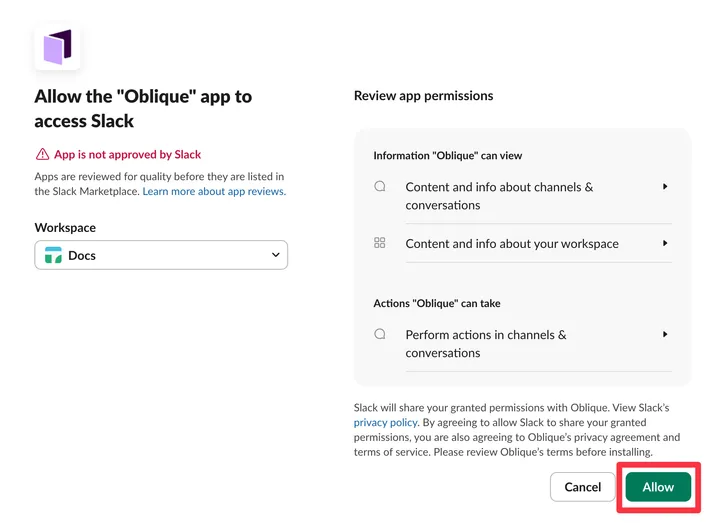
- Optionally, under Channels, select one or more Slack channels where notifications should be sent.
- Optionally, test that the integration is working as expected and sending messages to the correct Slack workspace and channels. Select Send test notification to send a test notification.
- Direct messages (DMs) are enabled by default. Optionally, disable DMs for users. Next to Direct messages, toggle Enabled or Disabled.
- Approvals from Slack are enabled by default, letting reviewers approve or close requests directly in Slack. Optionally, disable approvals from Slack. Next to Approve from Slack, toggle Enabled or Disabled.
- Select Add integration.
Approve the Oblique app in your Slack workspace
Section titled “Approve the Oblique app in your Slack workspace”By default, any Slack member can add an app to a workspace.
If your Slack workspace or organization has configured app approval to restrict installing Slack apps that aren’t approved, then your Slack workspace owner will need to approve the Oblique app for workspace members to use it. You can’t pre-approve the Oblique app since it’s not available in Slack Marketplace.
If you have already installed the Oblique app in your Slack workspace, approve it for all workspace members:
- Find the app in your list of installed apps, at
https://app.slack.com/apps-manage/$workspace-id/integrations/installedand select the app. Alternatively, navigate directly to the Oblique Slack app athttps://$workspace-name.slack.com/marketplace/A09EG3AJEHZ-oblique(US) orhttps://$workspace-name.slack.com/marketplace/A0A5AA3PHC0-oblique(Europe).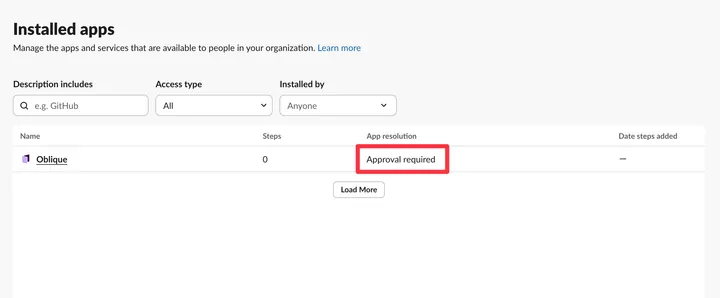
- On the app listing, find the desired workspace. Next to Manage app for entire workspace?, select Approve.
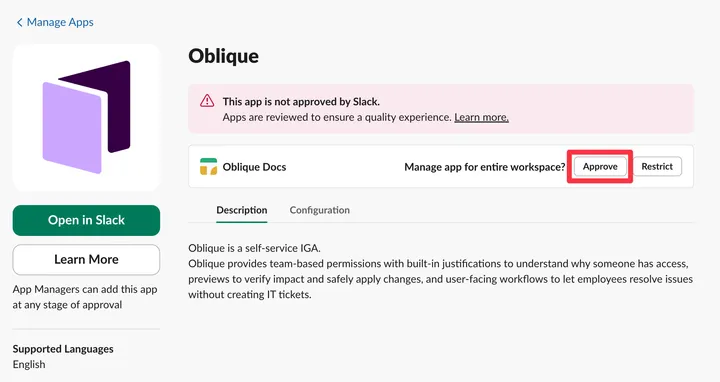
If you have app requests enabled, and a workspace member has requested the app, then:
- Find the app in your list of app requests, at
https://app.slack.com/apps-manage/$workspace-id/integrations/requestsand select the app. Alternatively, navigate directly to the Oblique Slack app athttps://$workspace-name.slack.com/marketplace/A09EG3AJEHZ-oblique(US) orhttps://$workspace-name.slack.com/marketplace/A0A5AA3PHC0-oblique(Europe). - On the app listing, find the desired workspace. Next to Manage app for entire workspace?, select Approve.
Once the app is approved, it will be listed in your list of installed apps, at https://app.slack.com/apps-manage/$workspace-id/integrations/installed, with the App resolution Approved. The app listing, at https://$workspace-name.slack.com/marketplace/A09EG3AJEHZ-oblique (US) or https://$workspace-name.slack.com/marketplace/A0A5AA3PHC0-oblique (Europe), will also show as approved for your workspace.
Sync Slack integration
Section titled “Sync Slack integration”You don’t need to do anything to sync the Slack integration. Oblique will automatically and continuously sync changes from Slack.
Remove Slack integration
Section titled “Remove Slack integration”Remove the Oblique app from Slack to stop syncing accounts from Slack and receiving Slack notifications about requests in Oblique.
From the Slack integration’s detail page:
- Navigate to the Settings tab.
- At the bottom of the page, under Delete integration, select Delete integration….
- In the confirmation dialog, type the text to confirm, then select Delete integration.
This will stop Oblique from syncing accounts from Slack and from sending notifications to Slack. You will still need to remove the Oblique app from the Slack workspace.
Troubleshooting
Section titled “Troubleshooting”If you get the error Apologies, but Oblique can't be installed, your Slack workspace or organization has configured app approval to restrict installing Slack apps that aren’t approved or aren’t in the Slack Marketplace. See Approve the Oblique app in your Slack workspace.