Command palette
You can navigate and search Oblique using the command palette. Some operations also have keyboard shortcuts.
The command palette provides an alternative way to navigate Oblique. Regular menus still allow you to navigate Oblique and reach all paths and objects by clicking.
The command palette is the primary way to search Oblique, allowing you to search all objects. Alternatively, you can also use list pages, such as the resources list, to search and filter for specific objects.
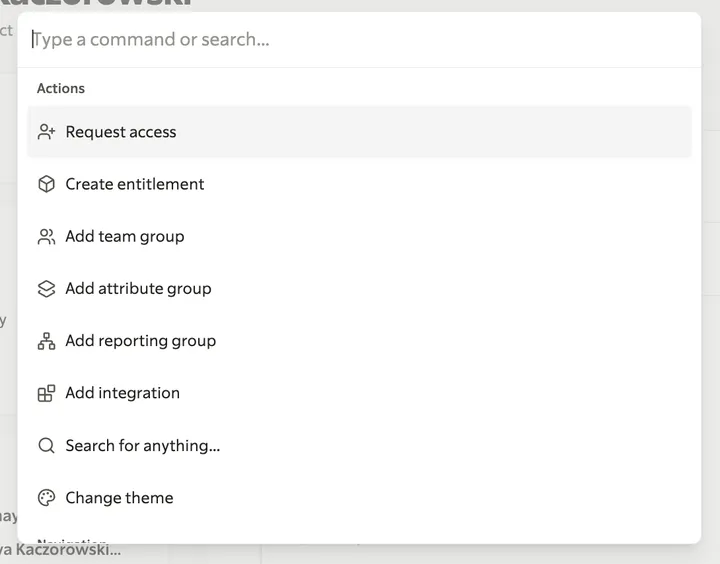
Open the command palette
Section titled “Open the command palette”From any page in Oblique, open the command palette using the shortcut
Once opened, the command palette displays a list of commonly accessed paths.
Navigate using the command palette
Section titled “Navigate using the command palette”- Open the command palette using the shortcut
Command + KCommandKControl + KControlK or by selecting the search bar in the navigation header. - Start typing to find a specific page, or use the arrow keys to navigate to a specific path.
- Select the path
EnterEnterEnterEnter to navigate to the desired location.
Search using the command palette
Section titled “Search using the command palette”- Open the command palette using the shortcut
Command + KCommandKControl + KControlK or by selecting the search bar in the navigation header. - Start typing to find a specific object. The search results will narrow to objects matching the search parameters.
- (Optional) Select the object
EnterEnterEnterEnter to navigate to it.
Use keyboard shortcuts
Section titled “Use keyboard shortcuts”In addition to opening the command palette using the shortcut
To see the full list of available shortcuts, open the Keyboard shortcuts dialog with
Use keyboard shortcuts to navigate the list of requests:
JJJJ orDown Arrow↓Down Arrow↓ for going down to the next requestKKKK orUp Arrow↑Up Arrow↑ for going up to the previous requestAAAA for approving requestsEEEE for applying requests
Use keyboard shortcuts to take actions on objects from their detail pages:
Command + Shift + CCommandShiftCControl + Shift + CControlShiftC for copying the link to the objectCommand + Option + CCommandOptionCControl + Alt + CControlAltC for copying the ID of the objectCommand + DeleteCommandDeleteControl + DeleteControlDelete for deleting the object